Posted on Leave a comment

Ecommerce Orders for IntelliDealer Import App

This page details the application named Ecommerce Orders for IntelliDealer Import created in-house and intended to be used to expedite processing ecommerce orders.

Ecommerce Orders for IntelliDealer Import App - Installation

Made by Jesse Straeter with Scribe


2. Click Here to download the latest version of the app.

3. Once the download finishes, click "EcommerceOrdersInstaller.zip file to open it.

4. The Zip file should open in WinRAR. A purchase notice will appear. Click X to close it.

5. Click the "EcommerceOrdersInstaller.exe" file

6. Click "Extract To"

7. Click the "Downloads" folder (or any folder you wish to extract it to).

8. Click "OK" to extract the file.

9. Navigate to the "Downloads" folder (or whichever folder you extracted the file to).

10. Double-click the EcommerceOrdersInstaller file to start the install process.

11. Click the Next button.

12. Click the Next button again.

13. Click the Install button.

14. Click the Finish button to complete the app installation.

15. Click the search icon in the menu bar.

16. Search for "ecommerce" and the app should appear. Click it to launch it.

17. Right click on the app on the menu bar.

18. Click Pin to Taskbar to make the application always accessible from here.


Ecommerce Orders for IntelliDealer Import App - Downloading Order Files

Made by Jesse Straeter with Scribe


1. From the website admin area, on the menu bar under Woocommerce, click "Export".

2. First make sure the Format field is set to Processing and On Hold Orders with Div.

3. Click the field and choose that option if it's not set already.

4. Uncheck the Mark as exported option.

5. Click the Order statuses field, which is blank by default.

6. Choose Processing from the list.

7. Click into the field again to select another value.

8. Click the On hold option.

9. Click the Export button to now export the file which will contain all orders with Processing and On Hold status.

10. You will see the Export being processed.

11. When it's completed downloading, you will see it in the Downloads folder.

12. Click the Done button to finish the Export on the website.

13. Now navigate to eBay.

14. Click the Downloads button under Reports.

15. If a popup window appears, you can click to say Don't show me this again.

16. Click "Get started" to close the popup window.

17. Click "Download report"

18. Click "Source Select report source"

19. Click "Orders"

20. Click "Type Select report type"

21. Click "Awaiting shipment"

22. Click "Download"

23. You will see a message that the report is being created.

24. When the report is completed, it will appear in the Downloads folder.

25. Now both the website and eBay orders that need processed have been downloaded into these two files that will next be used in the app.


Ecommerce Orders for IntelliDealer Import App – Processing Files

Made by Jesse Straeter with Scribe


1. Click the Process Web Orders button.

2. Browse to the file exported for the web orders needing processed and click on it..

3. Click "Open".

4. Click the Process eBay Orders button.

5. Click the file exported for the eBay orders needing processed.

6. Click "Open".

7. You should see a message in the log that both files have been processed successfully.

8. You should see in the same folder that the files were processed in (typically the Downloads folder), a new folder "web-orders" and "ebay-orders".

9. If you look in each folder, you will see a file for each order to process. Here is an example of the web-orders folder. The filename structure is "Div - Order # - Sale Date - Customer Name". So for instance, 1 - 793103 - 2025-05-24 - SANDRA KEENEY" is a sale for Rochester (Div # 1), for order # 793103, purchased 5/24/25, by the customer Sandra Keeney. When the Div is 0, that means that the order has not been assigned to any location yet.

10. Here is the ebay-orders folder containing the orders to process. The filename structure here is similar to the web-orders folder where it is "Div - Order # - Sale Date - Customer Name".

11. Now that a file has been created for each order to process, in the next step we will see how to use these to speed up the invoicing process in IntelliDealer.


Ecommerce Orders for IntelliDealer Import App – Settings

Made by Jesse Straeter with Scribe


1. Next, we will look at the Settings button, as this needs to be configured prior to using the Send to IntelliDealer option. Click the Settings button to go to it.

2. Here you will see the various settings that can be configured:

  • eBay Customer ID - Should be the IntelliDealer customer # used for eBay orders
  • Website Customer ID - Should be the IntelliDealer customer # used for web orders

3. Fixed Positioning: Check this option if you intend to always have the Parts Invoicing page in the same position on the screen when processing orders. This can be done by maximzing the Parts Invoicing window, or making it always take up the same half of the screen. Checking this option will make the order process run the best.

By not checking this option, you would need to always put your mouse in a certain spot that we will see later to make the Send to IntelliDealer option work properly, which can be more cumbersome.

4. Mouse Positioning Fields: These are the x and y coordinates of the screen for each field on the Parts Invoicing screen to reference by. Use a program like MPos to find these values.

5. Here is where to put your mouse in the highlighted areas for each Mouse Positioning field on the Customer screen. You can see using the MPos app what the x and y coordinates are for each field when the mouse is in that position.

6. Here is similarly where to put your mouse in the highlighted areas for each Mouse Positioning field on the Details screen.

7. eBay Free Freight Surcharge: This is the amount used in eBay to account for freight with listings that have Free Shipping. The Send to IntelliDealer option will make this calculation for processing properly in IntelliDealer.

8. Once the values are entered, click the Save Settings button to save them.

9. Click the Go Back button to return to the main screen. You will see a record on the screen that says the settings were saved.


Sample Description

Step 1 – Installing the App

Ecommerce Orders for IntelliDealer Import App – Installation

Made by Jesse Straeter with Scribe


2. Click “Download the Ecommerce Orders for IntelliDealer Import App”

3. Once the download finishes, click “EcommerceOrdersInstaller.zip file to open it.

4. The Zip file should open in WinRAR. A purchase notice will appear. Click X to close it.

5. Click the “EcommerceOrdersInstaller.exe” file

6. Click “Extract To”

7. Click the “Downloads” folder (or any folder you wish to extract it to).

8. Click “OK” to extract the file.

9. Navigate to the “Downloads” folder (or whichever folder you extracted the file to).

10. Double-click the EcommerceOrdersInstaller file to start the install process.

11. Click the Next button.

12. Click the Next button again.

13. Click the Install button.

14. Click the Finish button to complete the app installation.

15. Click the search icon in the menu bar.

16. Search for “ecommerce” and the app should appear. Click it to launch it.

17. Right click on the app on the menu bar.

18. Click Pin to Taskbar to make the application always accessible from here.


Step 2 – Downloading Order Files

Ecommerce Orders for IntelliDealer Import App – Downloading Order Files

Made by Jesse Straeter with Scribe


1. From the website admin area, on the menu bar under Woocommerce, click “Export”.

2. First make sure the Format field is set to Processing and On Hold Orders with Div.

3. Click the field and choose that option if it’s not set already.

4. Uncheck the Mark as exported option.

5. Click the Order statuses field, which is blank by default.

6. Choose Processing from the list.

7. Click into the field again to select another value.

8. Click the On hold option.

9. Click the Export button to now export the file which will contain all orders with Processing and On Hold status.

10. You will see the Export being processed.

11. When it’s completed downloading, you will see it in the Downloads folder.

12. Click the Done button to finish the Export on the website.

13. Now navigate to eBay.

14. Click the Downloads button under Reports.

15. If a popup window appears, you can click to say Don’t show me this again.

16. Click “Get started” to close the popup window.

17. Click “Download report”

18. Click “Source Select report source”

19. Click “Orders”

20. Click “Type Select report type”

21. Click “Awaiting shipment”

22. Click “Download”

23. You will see a message that the report is being created.

24. When the report is completed, it will appear in the Downloads folder.

25. Now both the website and eBay orders that need processed have been downloaded into these two files that will next be used in the app.


Step 3 – Processing Files

Ecommerce Orders for IntelliDealer Import App – Processing Files

Made by Jesse Straeter with Scribe


1. Click the Process Web Orders button.

2. Browse to the file exported for the web orders needing processed and click on it..

3. Click “Open”.

4. Click the Process eBay Orders button.

5. Click the file exported for the eBay orders needing processed.

6. Click “Open”.

7. You should see a message in the log that both files have been processed successfully.

8. You should see in the same folder that the files were processed in (typically the Downloads folder), a new folder “web-orders” and “ebay-orders”.

9. If you look in each folder, you will see a file for each order to process. Here is an example of the web-orders folder. The filename structure is “Div – Order # – Sale Date – Customer Name”. So for instance, 1 – 793103 – 2025-05-24 – SANDRA KEENEY” is a sale for Rochester (Div # 1), for order # 793103, purchased 5/24/25, by the customer Sandra Keeney. When the Div is 0, that means that the order has not been assigned to any location yet.

10. Here is the ebay-orders folder containing the orders to process. The filename structure here is similar to the web-orders folder where it is “Div – Order # – Sale Date – Customer Name”.

11. Now that a file has been created for each order to process, in the next step we will see how to use these to speed up the invoicing process in IntelliDealer.


Step 4 – Settings

Ecommerce Orders for IntelliDealer Import App – Settings

Made by Jesse Straeter with Scribe


1. Next, we will look at the Settings button, as this needs to be configured prior to using the Send to IntelliDealer option. Click the Settings button to go to it.

2. Here you will see the various settings that can be configured:

  • eBay Customer ID – Should be the IntelliDealer customer # used for eBay orders
  • Website Customer ID – Should be the IntelliDealer customer # used for web orders

3. Fixed Positioning: Check this option if you intend to always have the Parts Invoicing page in the same position on the screen when processing orders. This can be done by maximzing the Parts Invoicing window, or making it always take up the same half of the screen. Checking this option will make the order process run the best.

By not checking this option, you would need to always put your mouse in a certain spot that we will see later to make the Send to IntelliDealer option work properly, which can be more cumbersome.

4. Mouse Positioning Fields: These are the x and y coordinates of the screen for each field on the Parts Invoicing screen to reference by. Use a program like MPos to find these values.

5. Here is where to put your mouse in the highlighted areas for each Mouse Positioning field on the Customer screen. You can see using the MPos app what the x and y coordinates are for each field when the mouse is in that position.

6. Here is similarly where to put your mouse in the highlighted areas for each Mouse Positioning field on the Details screen.

7. eBay Free Freight Surcharge: This is the amount used in eBay to account for freight with listings that have Free Shipping. The Send to IntelliDealer option will make this calculation for processing properly in IntelliDealer.

8. Once the values are entered, click the Save Settings button to save them.

9. Click the Go Back button to return to the main screen. You will see a record on the screen that says the settings were saved.
Posted on Leave a comment

Adding New Products to Company Website

Follow the steps below to add new products to the company website:

Check to verify that the part is not already on the website. To do this, browse to newhollandrochester.com/shop/part#goeshere. So for example, to check if part # 21.71610 is on the website, visit newhollandrochester.com/shop/21.71610.

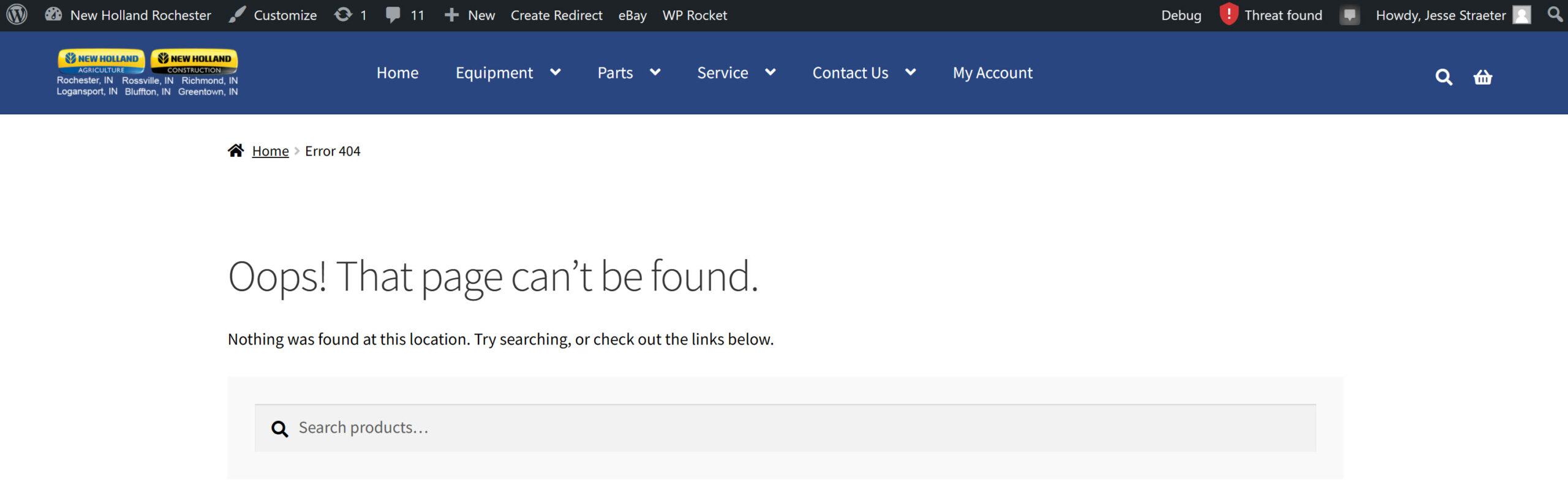
If the page that comes up shows a message such as “Oops! That page can’t be found.” then it does not already exist.

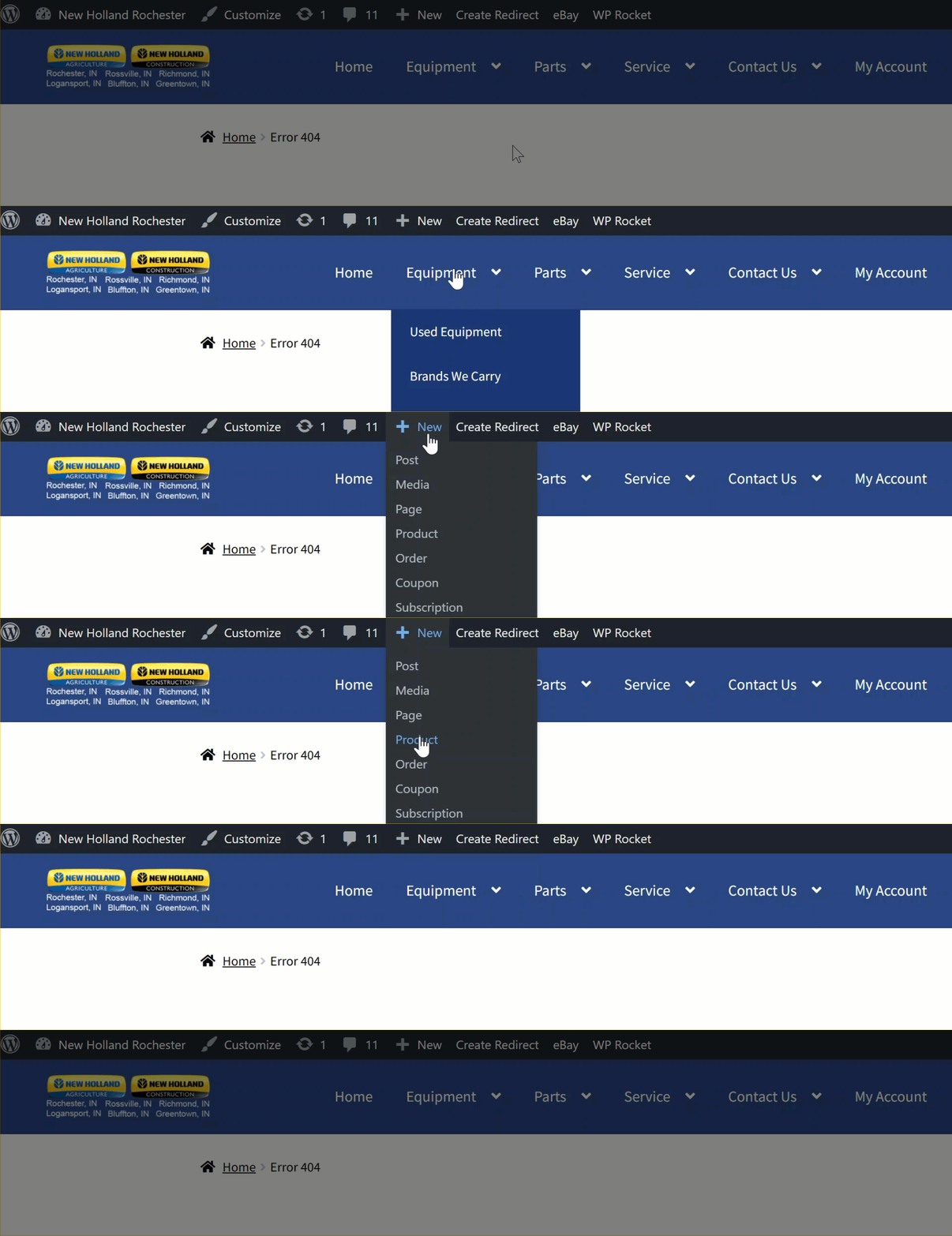
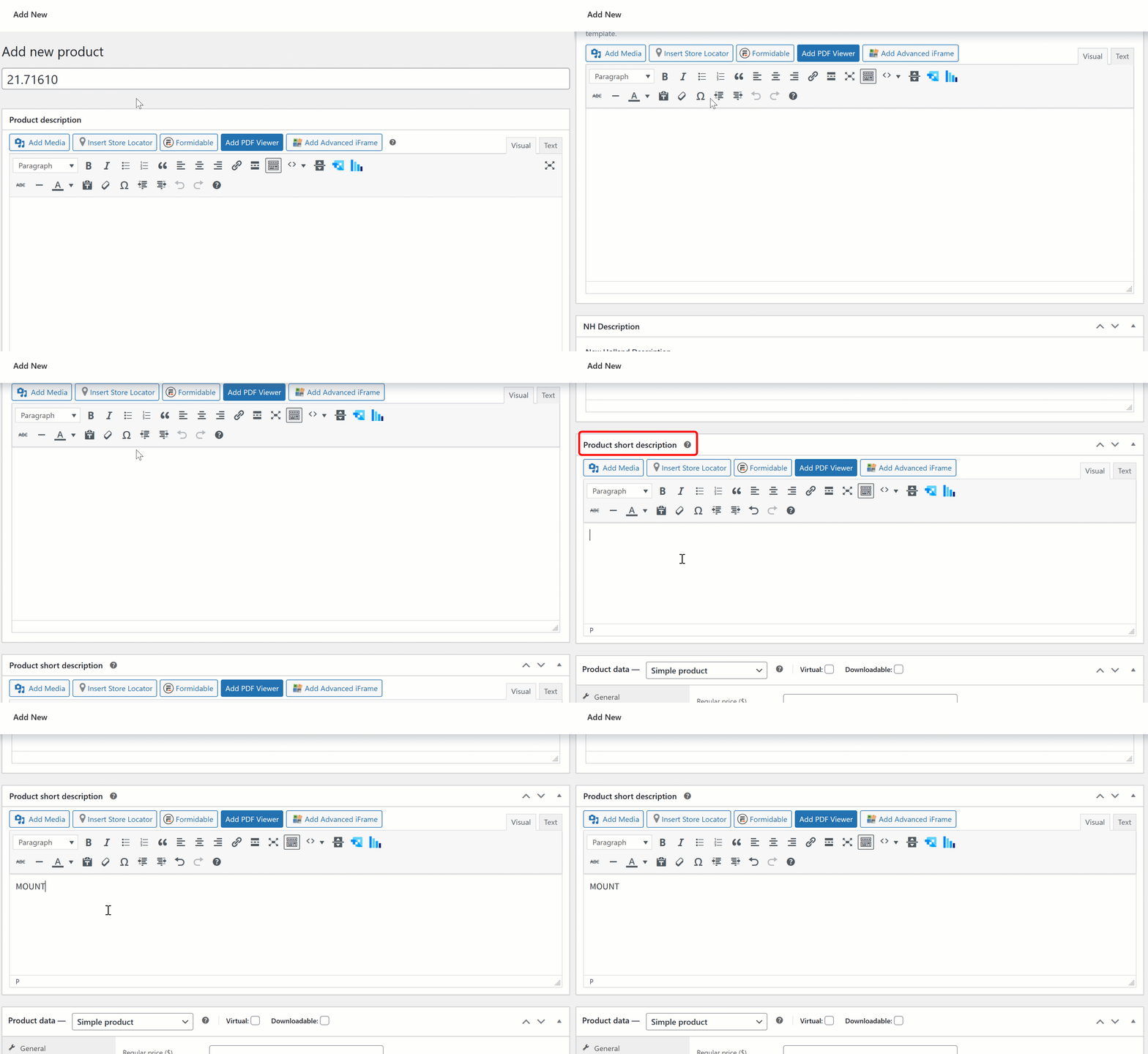
Browse to the admin menu bar and go to “+New -> Product”. If you do not see this menu bar, you need to log into the website. You can do this by clicking on the "My Account" tab on the main menu and log in there.

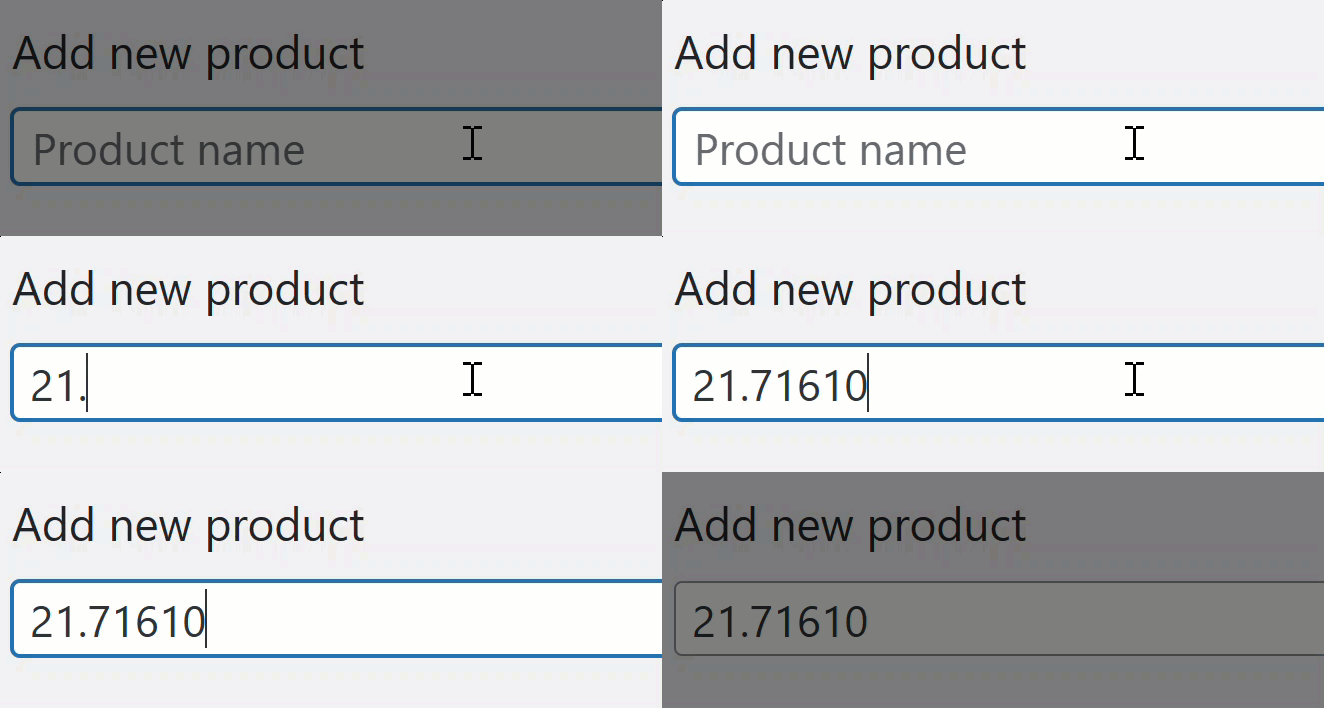
Enter the part # in the Product name field.

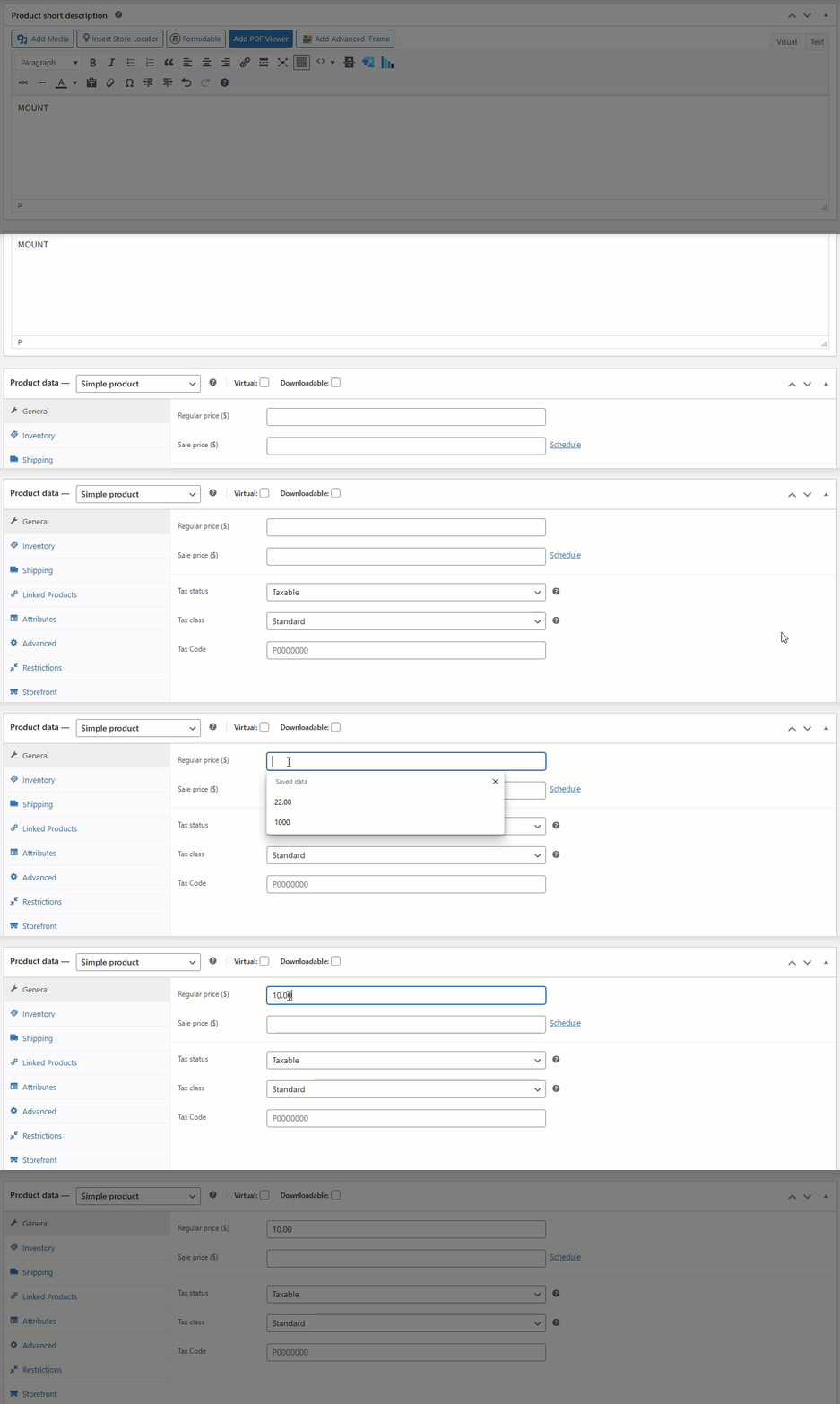
Scroll down to the Product Short Description field and enter in a short description for the product. Generally, what can be entered in here is the same description that would be on the part profile description field in Intellidealer and consists of only one or two words.

Scroll down to the Product Data section and enter the sale price of the part into the Regular price ($) field. You can find the sale price for the part from the part profile page in Intellidealer.

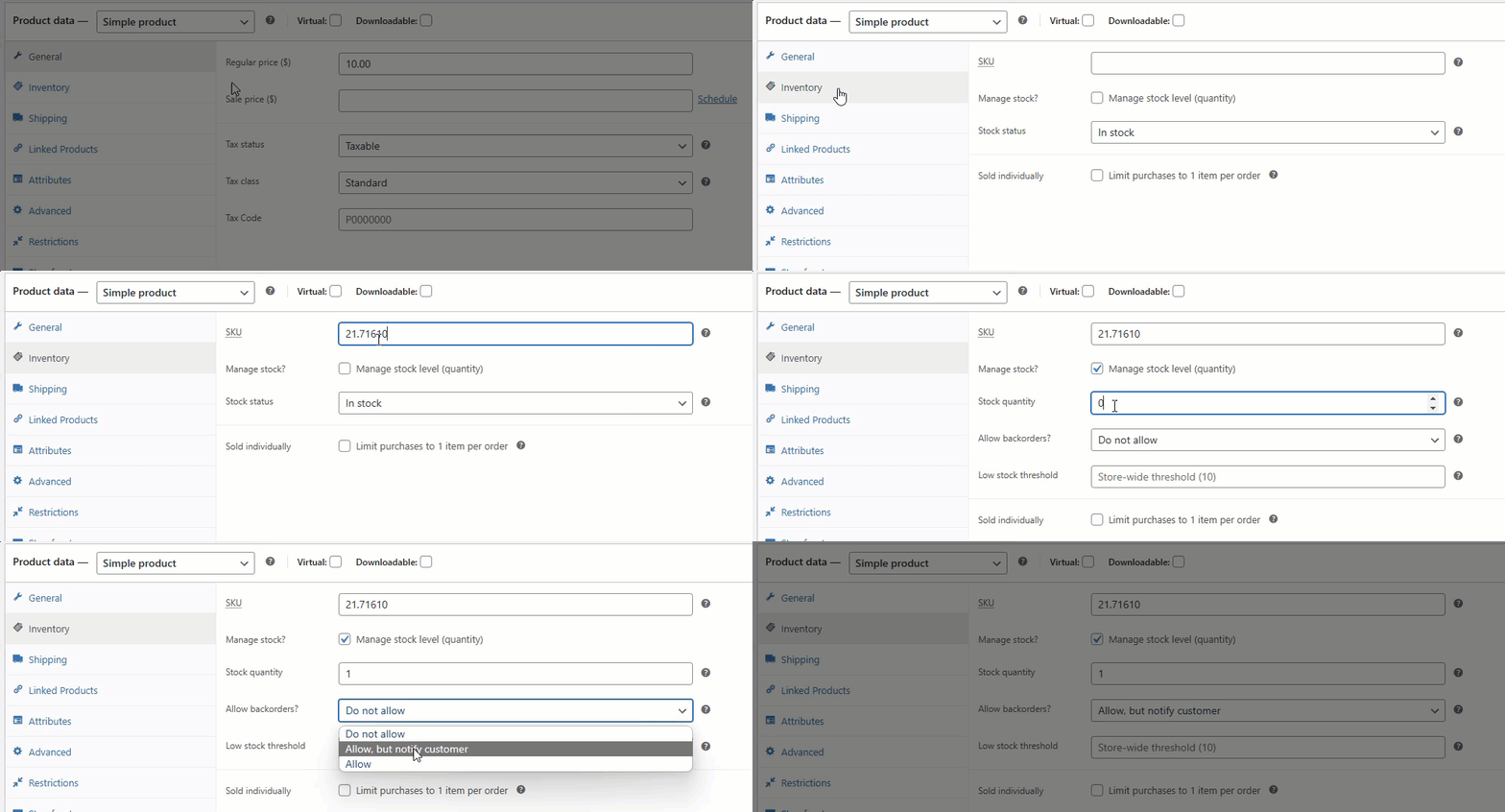
Click on the Inventory tab in the product data section and enter the part # in to the SKU field, check the Manage stock level box, enter the current quantity on hand, and select "Allow, but notify customer" option for Allow backorders.

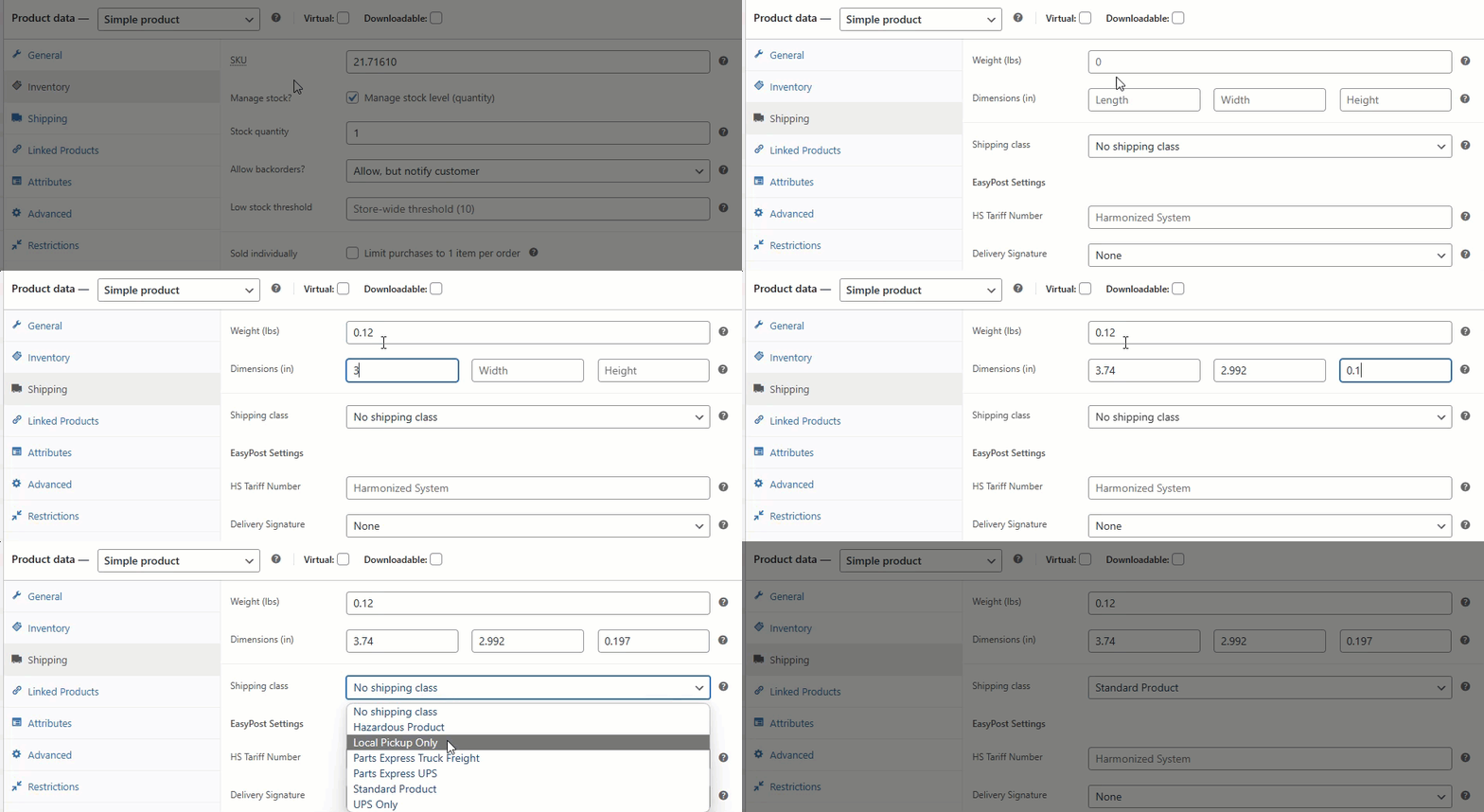
Click on the Shipping tab and enter in the product weight, dimensions, and appropriate shipping class.

  • For the product weight, a minimum of 0.10 needs to be used as that is the minimum weight that eBay allows. You can find the product weight from the either the part profile page in Intellidealer, actually weighing the product yourself, or through the manufacturer's website on the part profile page (i.e. CSPS for New Holland).
  • For the product dimensions, you can find this either from the manufacturer's website (i.e. CSPS for New Holland) or by measuring the dimensions yourself (or if the situation calls for it, use an approximation if necessary).
  • For the shipping class, any regular product (99% of the time) will use the Standard Product shipping class. Hazardous items such as paint and oils would use the Hazardous Product option. We have had some issues with USPS for certain types of heavier parts such as mower blades to where we started using the UPS Only option.

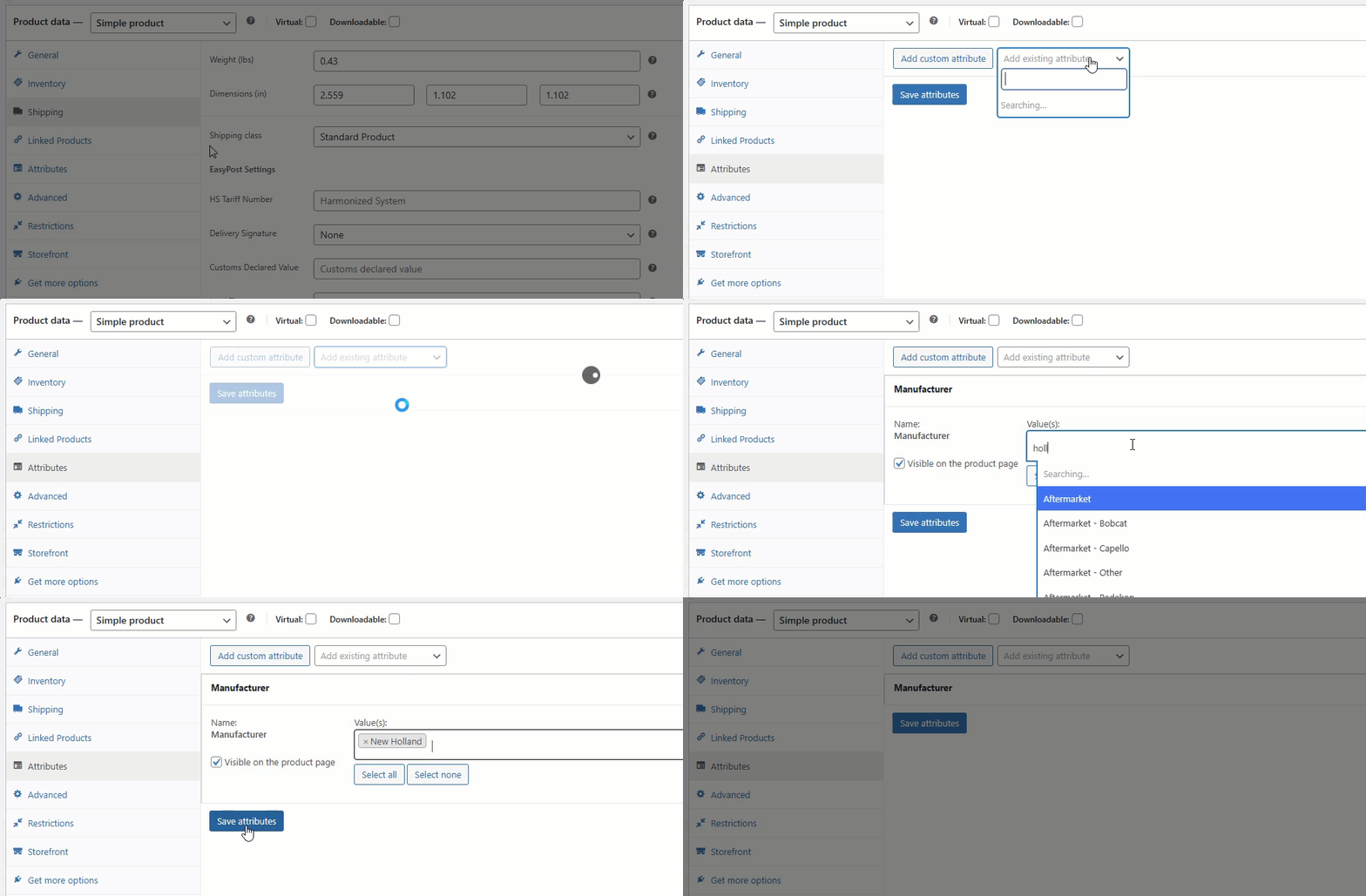
Browse to the Attributes section. Search for the Manufacturer attribute, then search for the appropriate manufacturer and then click the Save attributes button.


If the manufacturer does not appear, you can click the Add New button to add them in.

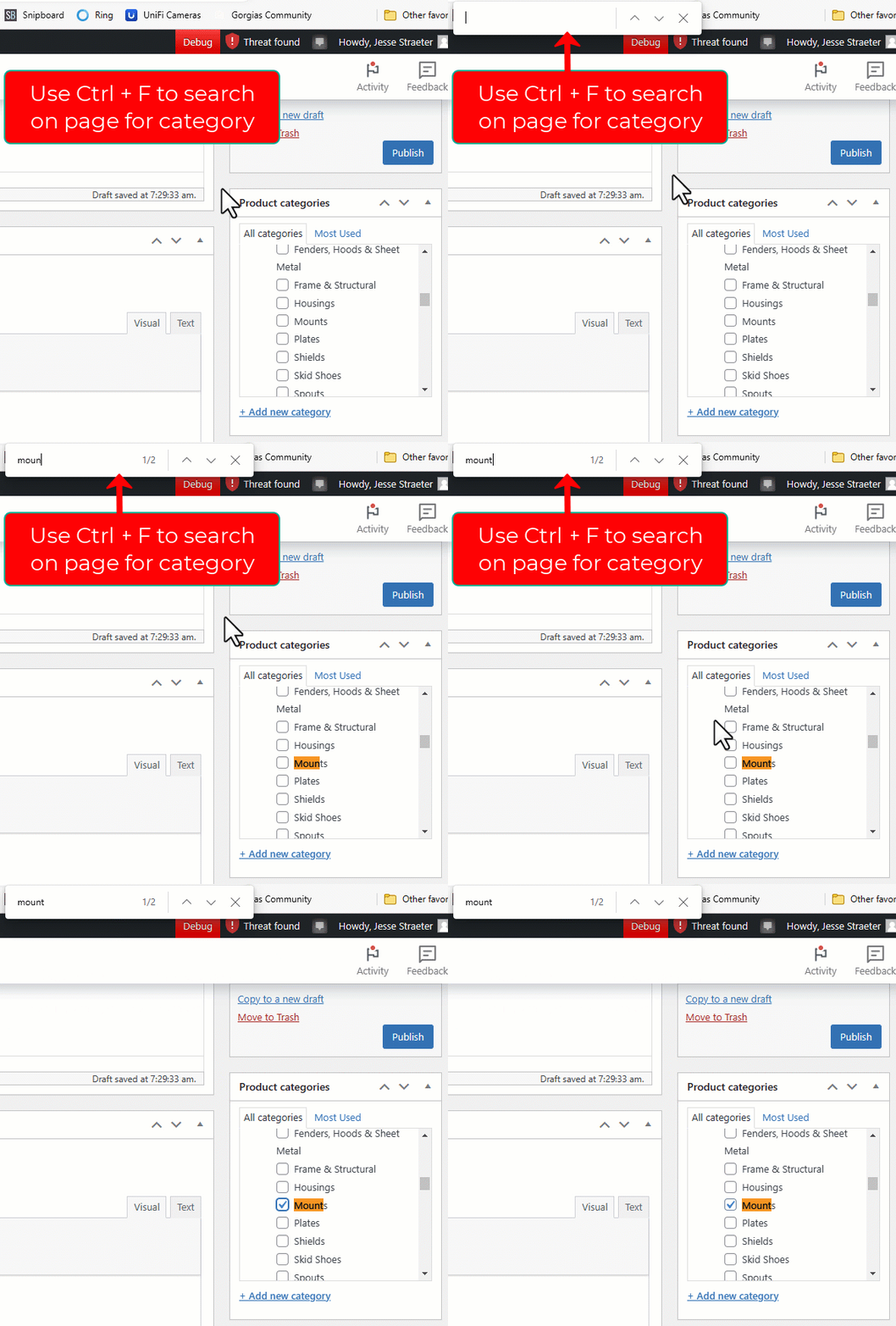
Scroll up to the Product categories section on the right-hand side and select the proper category.

There are many product categories, with several subcategories. Generally, the quickest way to find a category is by pressing Ctrl + F on the keyboard to open the Find search box, and searching for the category that way. The general structure of the product categories is:

All Equipment
-> Equipment subcategories
All Parts
-> Parts subcategories

As a general rule, we only select one category option per product. For example, you may know that a bolt is used on certain planters, but instead of checking Hardware, Bolts (a subcategory under Hardware) and Planters, it would be most appropriate to check the Bolts category under the Hardware section assuming that is where a person would most commonly look for this product. If you are uncertain which category to select, it is a good practice to look where the part is used and on what machines using the manufacturer's parts catalog system to get a better understanding of what is the most appropriate category to select.

Please do not add any new categories without permission first. For a full list of current categories that is easier to see, you can view them on a spreadsheet here:

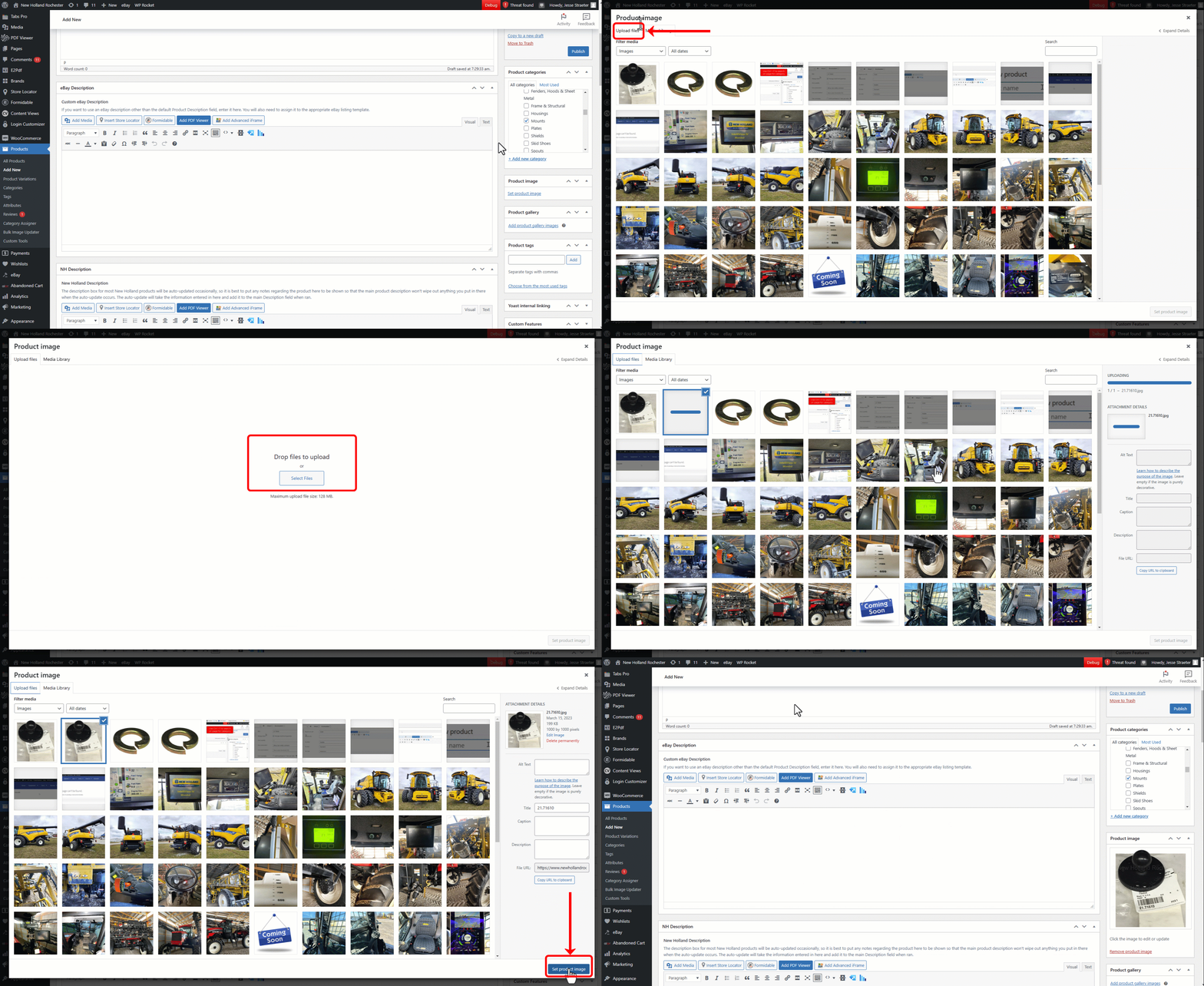
Scroll to the Product image section and upload the main product image for this product.

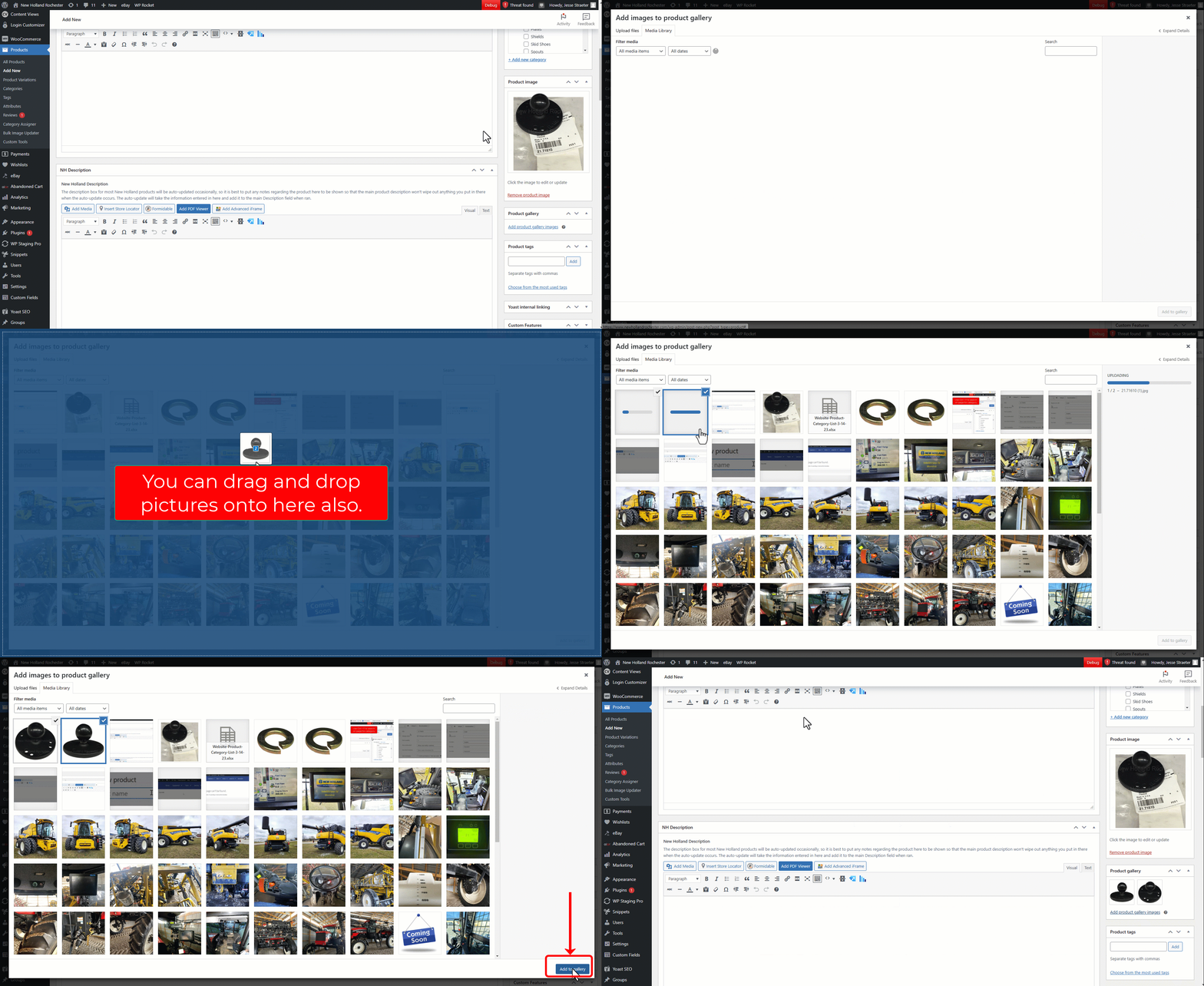
If you have additional pictures, scroll to the Product gallery section and upload the additional images there.

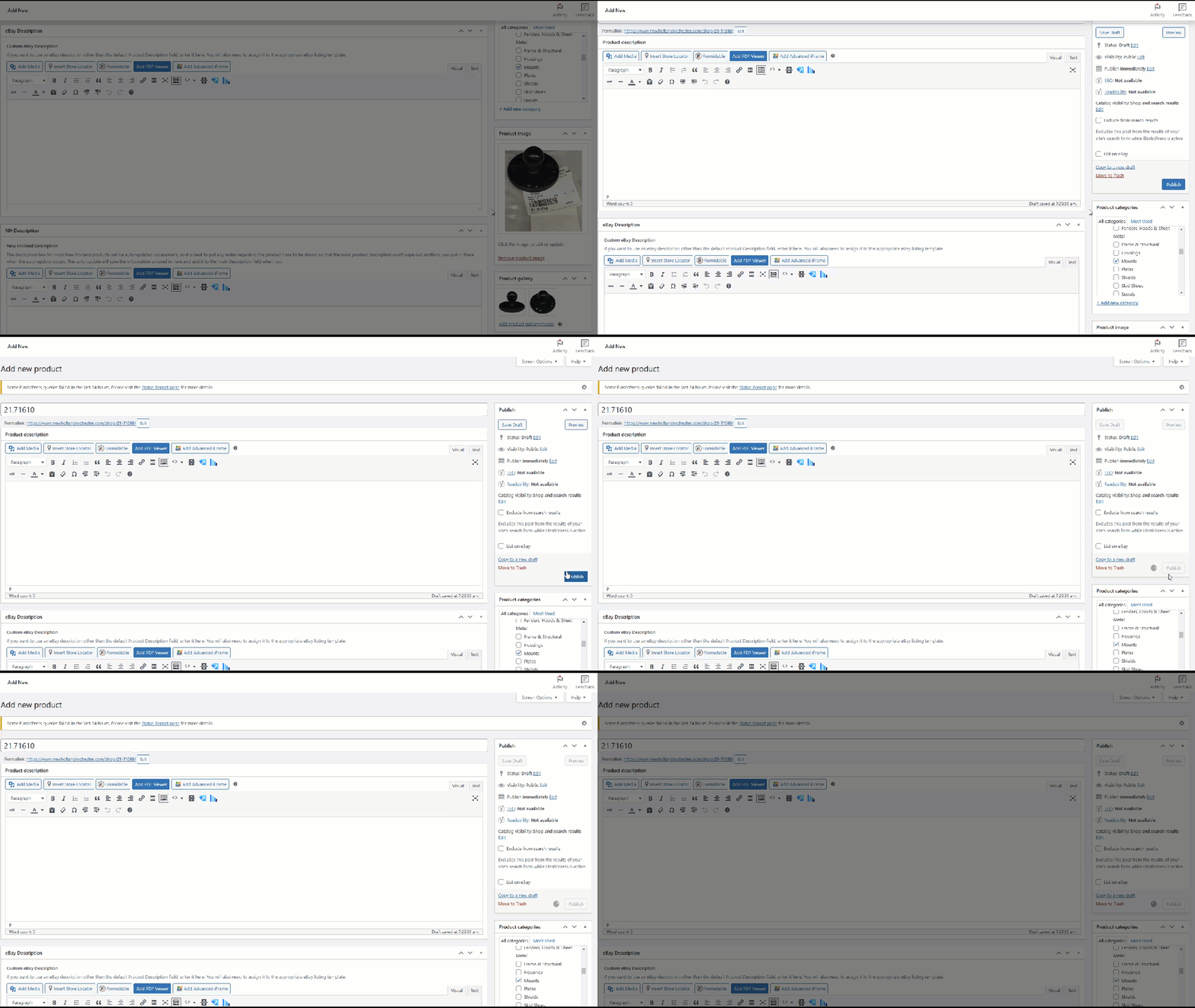
Scroll up and click on the Publish button.


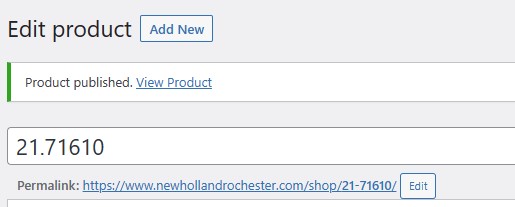
Once the product is published to the website, it is live to view using the url address shown, also referred to as a permalink:

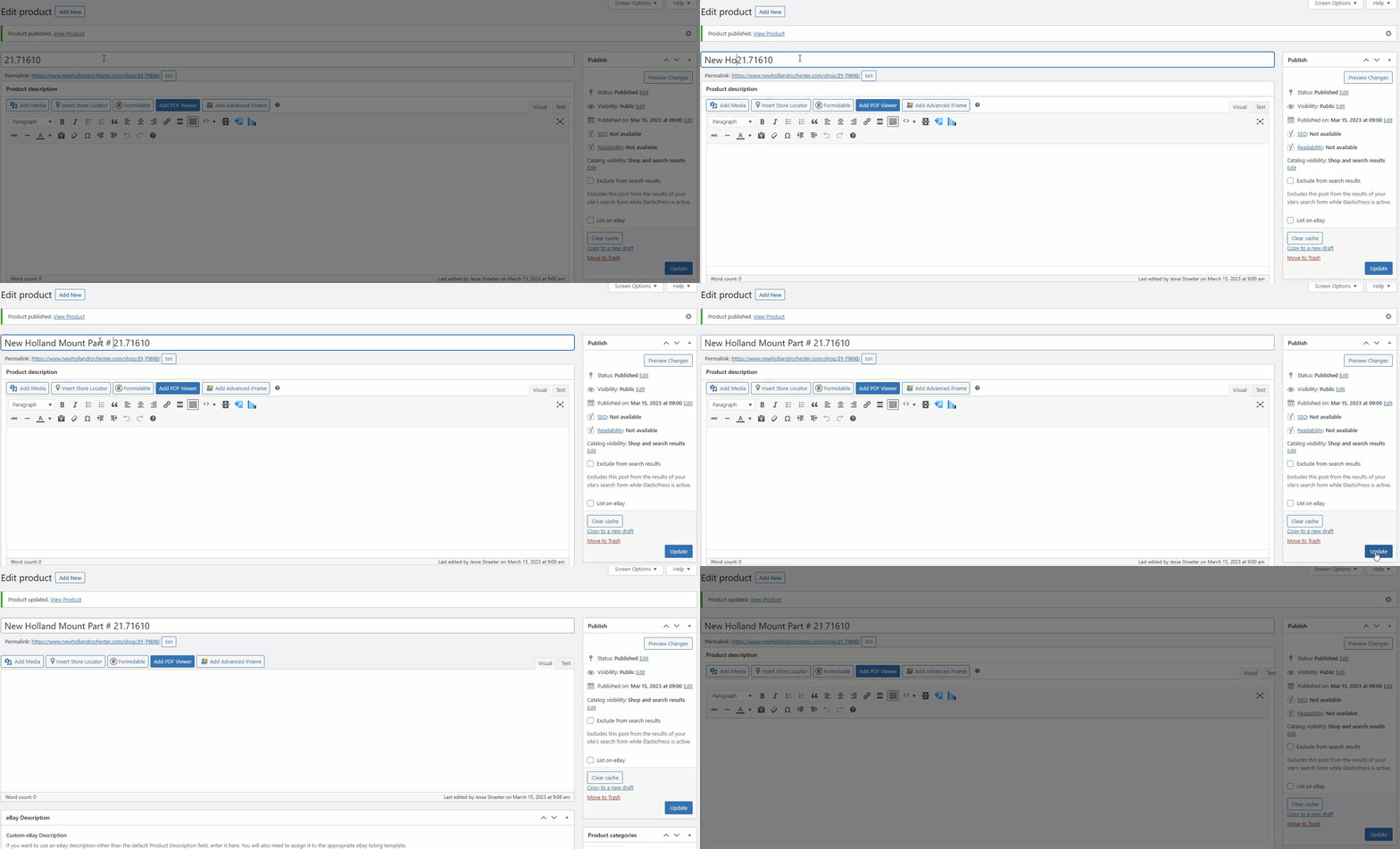
We started with making the title the same as the part number so that when we publish the post initially, the permalink shows up as newhollandrochester.com/shop/part#goeshere. It is very important this be the case, as all part pages on our site follow this structure.

Now that the page is published with the Permalink set as desired, we can edit the title to something more appropriate:


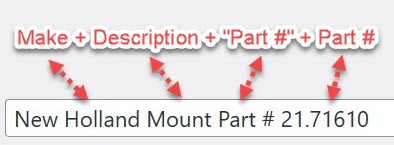
The title should be renamed using the following structure:

  1. Manufacturer ("Make") name
  2. Short Description of the product
  3. The text "Part #" (without the quotes)
  4. The part # itself

Use Proper Casing as shown here. Use the ampersand symbol (&) instead of the word "and" when needed to keep the title short. It is a good practice to keep the title short, yet descriptive as necessary. For instance, it may be appropriate to put dimensional information in the title like "New Holland 1" ID x 1.5" OD x 0.5" Thk Roller Bearing Part # 12345" in order to help a customer verify whether or not identify if this is the part needed when searching prior to clicking on the product page.

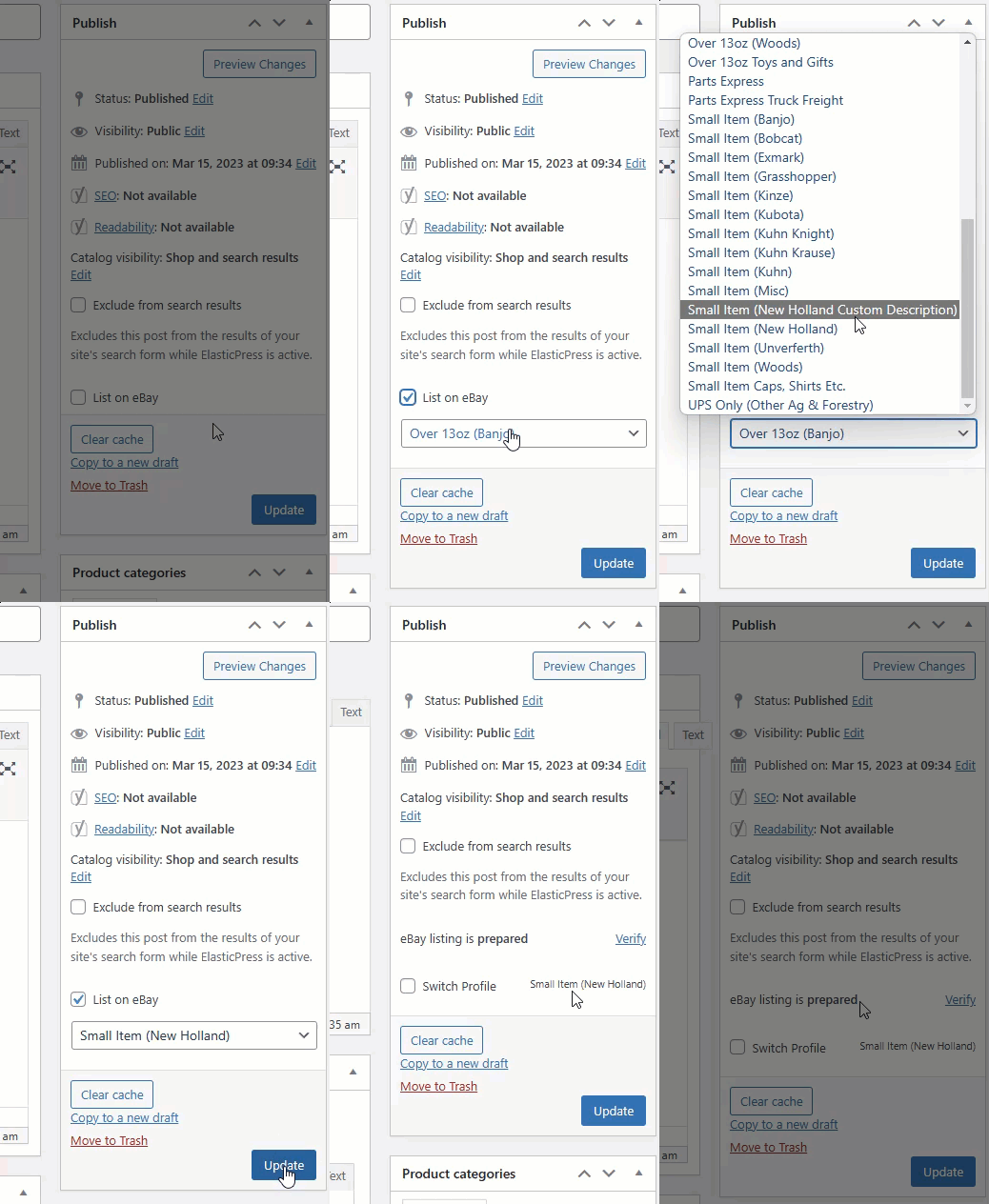
To add the item to eBay, check the List on eBay box, select the appropriate category, and click the Update button.

The category to select is generally determined by whether it is under 1lb (Small Item) or over 1lb (over 13oz) and the manufacturer. The product will still need to be Verified and Published to appear on eBay, which is outside the scope of this tutorial.

Here is a YouTube video showing a training session held reviewing the steps in this video:

Posted on Leave a comment

Parts Lookup Resources

Here is a compiled list of resources on locating parts availability:

Source Name Brand(s) Offered Specialty Notes
wdt_ID Source Name Brand(s) Offered Specialty Notes Details
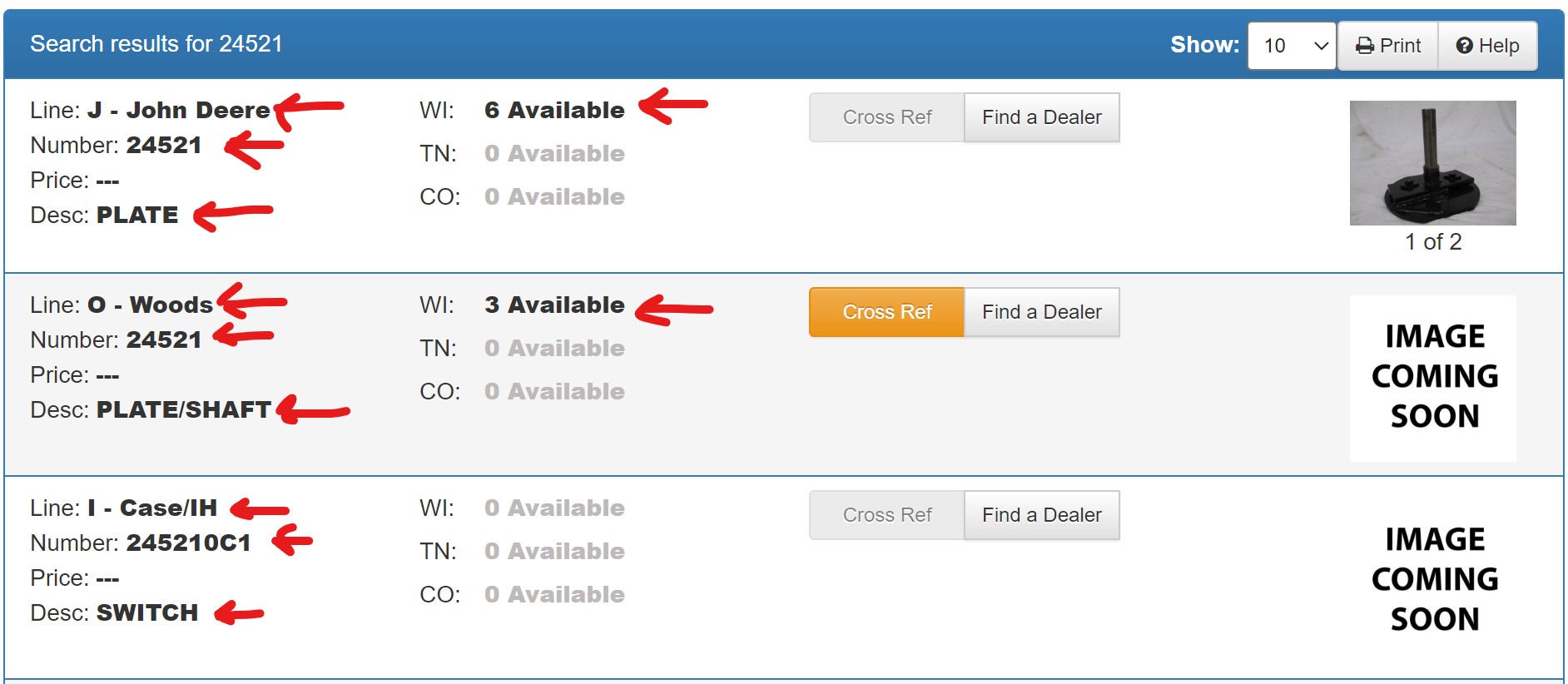
1 Parts Depot (open site) All Makes Obsolete OEM parts Dealers sell their obsolete parts to this company for pennies on the dollar, who turn around and resale them back to those who need it. So they have many hard to find parts from all brands. To view their products:
1. Navigate to https://www.depotparts.com/.
2. Search for the part # needed in the search box (example).
3. A new tab will open showing you the search results. For any results displayed, double check that the part # and brand is the same as what you need (example).
4. For any results for which they have on hand, you can contact the appropriate depot location to order, as shown at the top of the page (example).
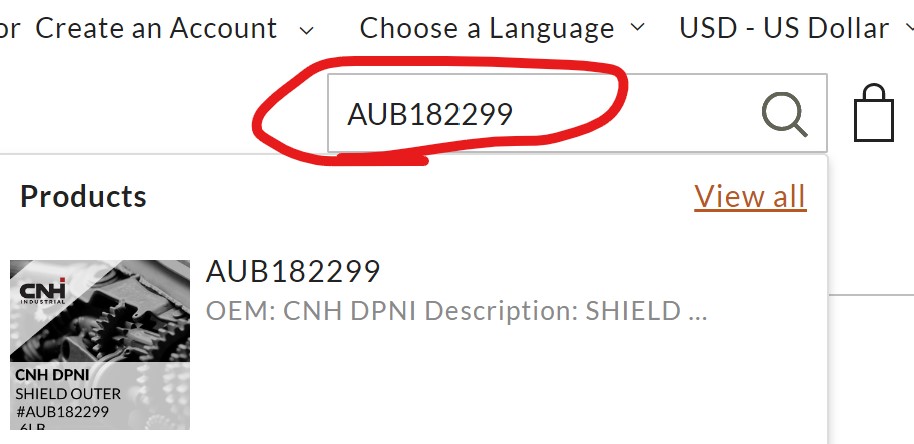
2 Vintage Parts (open site) All Makes Obsolete OEM parts Vintage Parts is a company that buys obsolete parts from manufacturers, so they offer many hard-to-find parts. To find parts on their site:
1. Navigate to https://www.vpartsinc.com/.
2. Use the search box at the top right to search for the part number you are hoping to locate (example).
3. If results are found, they will be shown and you can view the product page from there.
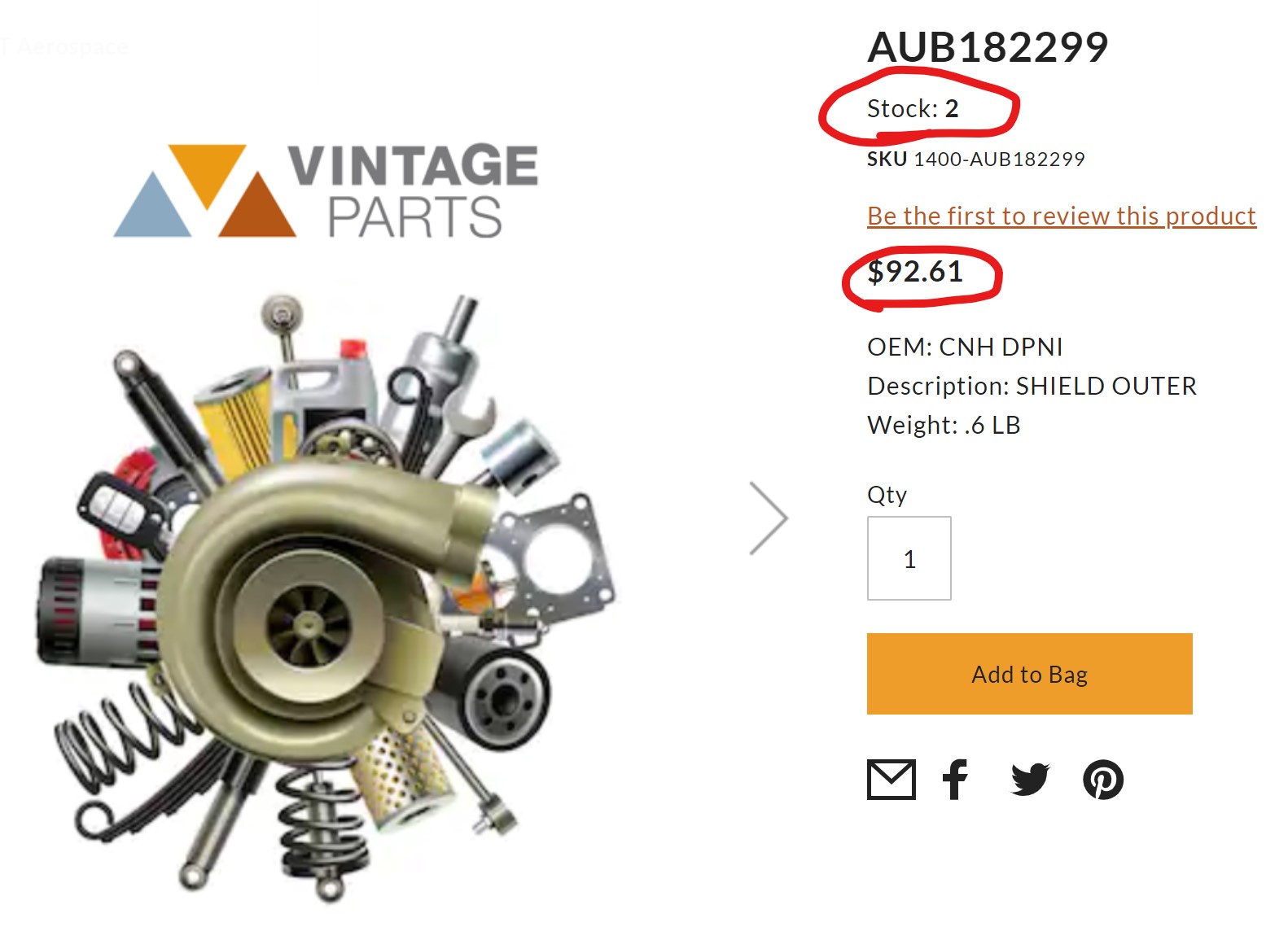
4. Check to see if they have the part on hand. If so, you can call them (877-846-8243) or login to the site to order. The price that is displayed on the product page is the list price for the customer, and we will get a discount on that for our profit (for instance, in this example, the $92.61 shown is what price to offer to the customer).
3 Sparex (open site) All Makes Aftermarket & obsolete OEM parts Sparex is a company that offers a variety of aftermarket parts for all brands. You can visit their site to at https://us.sparex.com/ and use the search box to try and find what is needed.
Each location has their own login information that can be used to login and order the parts from.
4 Parts Express (open site) All Makes Aftermarket OEM parts Parts Express is a company that manufacturers aftermarket parts for many brands. You can use their site to search by part number or by make/model. Each store has their own account login information that can be used to order the parts from. Visit their site at https://parts-exp.com/
5 Weaver's Compact Tractor (open site) All Makes Used compact tractor/skid steer parts Weaver's Compact Tractor company focuses on sourcing and supplying compact tractor parts for all brands. Visit their site at https://www.compactractorparts.com/ to view their product offering, or give them a call at 717-477-9332 with the part number that you are looking to get and they will see if they can locate it or not.
If they do have it, you will need to take the pricing that they offer us and mark it up 30% to offer to the end customer. Don't forget to account for the freight also.
6 Breizelec (open site) All Makes Reman/repairing electrical parts Breizelec is a company focused mostly on hard-to-find electrical based parts. They repair/remanufacture many electrical parts for all makes. Visit their site at https://www.breizelec.fr/en and search the site for the part numbers needed.
They are based primarily out of Canada, and so it is usually around $50 to ship parts to/from there. If they do not have the part on hand, they may be able to repair the broken component the customer is needing depending on the state of the part. You can send them the pictures for the to try and evaluate it ahead of time. You will need to get our cost for everything from them, and then ideally mark it up 30% to the end customer from there.
Posted on Leave a comment

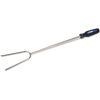
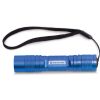
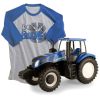
Check out our Camping Parts Specials – Now through 5-31-16!

In preparation for the Memorial Day weekend, we are offering great deals on New Holland merchandise that would be great to have on hand out at the campsite!

These promotional prices are good through May 31, 2016 or while supplies last! Since some items are limited and may go fast, we recommend calling our parts department ahead of time to make sure we still got what you need!

Posted on Leave a comment

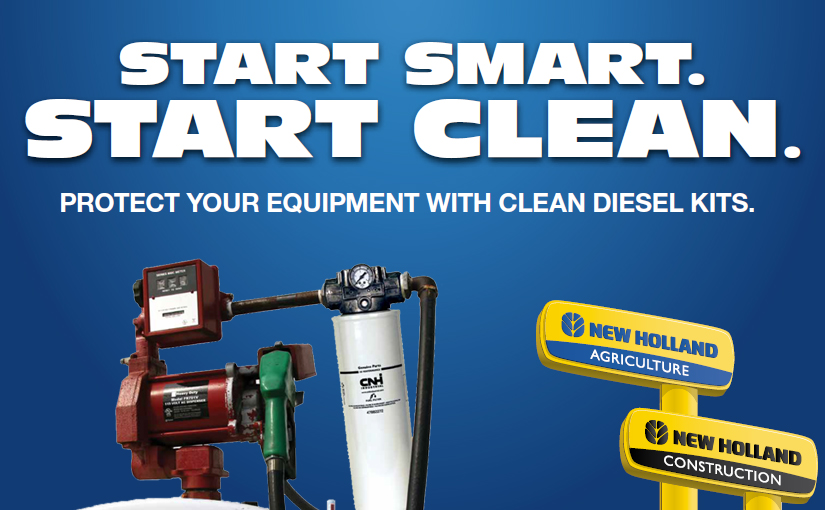
Protect Your Equipment with Clean Diesel Kits

Regardless of how clean your bulk tank is, your diesel is dirty. As it travels from the refinery to your tank, bulk diesel is transferred from one container to another numerous times – picking up dirt and water along the way. A typical 10,000 gal bulk diesel delivery can carry as much as 1.5 lbs of dirt – enough to wreak havoc in your engine.

Our Clean Diesel Kits are designed to filter harmful, microscopic contaminants out of your fuel before they’re pumped into your machines. Simple to install and easy to monitor, Clean Diesel Kits protect your engine and cut costs due to unexpected maintenance and downtime.

NH Clean Diesel Filtration Brochure


Posted on Leave a comment

Attend Logansport’s Kinze Clinic This Friday 1/29/16

We take planter performance seriously. New Holland Logansport is having it’s annual Kinze Clinic this Friday 1/29/16. Expect our staff to bring the best information on parts, service, and operator support to attendants. Kinze representatives Jim McGee and Chris Ayers will also be on hand to present tips, advice, and other planter information.

Coffee will be served starting at 9am, the meeting will begin at 9:45am, and lunch will be served for attendees afterwards.

Customers who attend the clinic are eligible for up to 20% off of Kinze parts. Stop in or call 574-753-6291 for more information today! Stock up, Save BIG, keep it KINZE!

Posted on

Now is the best time to take advantage of our Certified Maintenance Inspection Program!

If you understand the value of having highly trained New Holland service technicians working on your equipment, then you’ll also appreciate our annual Certified Maintenance Inspection program. Continue reading Now is the best time to take advantage of our Certified Maintenance Inspection Program!

Posted on

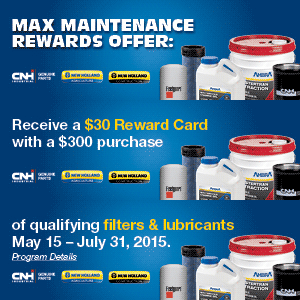
Max Maintenance Reward Offer

NH_SpringRetailMaintenance_WebBanner_300x100

Keep your equipment running at peak performance with maintenance solutions from New Holland. Now through July 31, 2015, stop by any of our locations and receive a $30 Reward Card with a $300 purchase of any combination of genuine New Holland filters and lubricants and all-makes Fleetguard filters. Redeem this offer online at the Partstore Reward Center by September 30, 2015. Take advantage of this Max Maintenance Rewards offer and stock up on genuine New Holland filter and lubricants and all-makes Fleetguard filters today!

Terms and conditions apply. View the flyer for all the details or stop in at any of our locations today! Already made a purchase that qualifies for the reward? Great! Click here to claim your reward!

Posted on

Get Your Father’s Day Gift with a Discount!

NH_FathersDay_Promo_2015

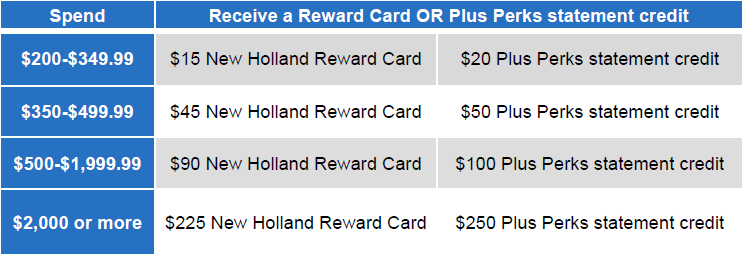
Give dad the perfect Father’s Day. We have everything he needs from the time he wakes up and throws on his New Holland sweatshirt—to the time he parks his baler and refills its tires with his New Holland air compressor. Plus, you’ll earn big rewards on qualifying radio, observation system, power equipment and tool purchases:

NH_FathersDay_Promo_Table_2015

Hurry in to any of our locations before June 30, 2015 and take advantage of this special offer!